
Every screenshot becomes searchable text.
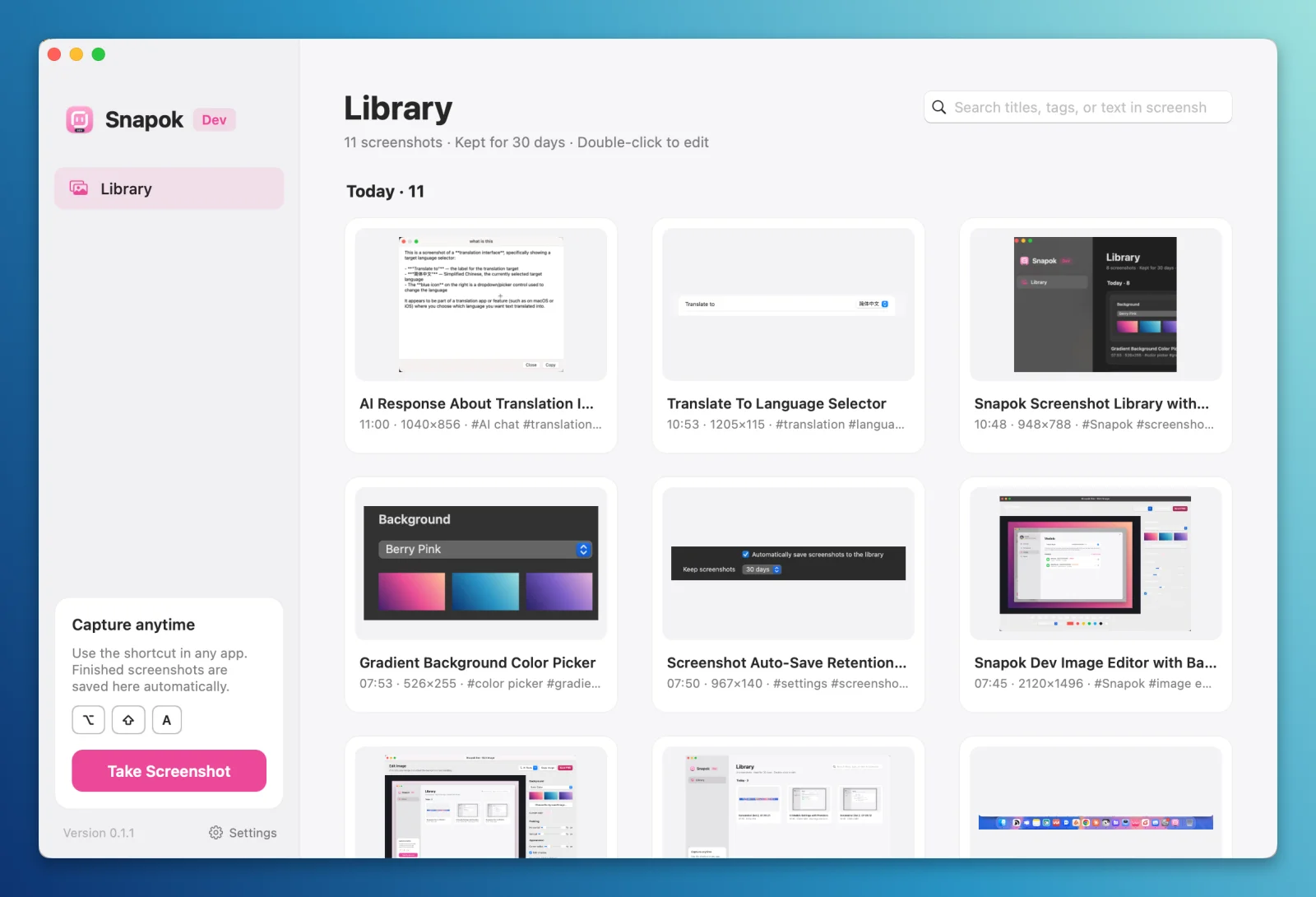
After each capture, Snapok runs Apple’s Vision text recognition on your Mac. Copy the text out of an image, or search your library for an error message and find the screenshot that shows it.
On-device, no API key
Recognition uses macOS Vision. Nothing is uploaded and there’s nothing to configure.
Search the words inside images
The library search covers titles, tags, and recognized text, so you can find a capture by what it says.
Copy text in one click
Right-click a screenshot in your library and choose Copy Recognized Text, or use AI Tools → Recognize Text in the editor.
Feeds translation
The same recognized text blocks are what Snapok sends to your model when you translate a screenshot.
How to copy text from a screenshot on Mac
- 1Take a screenshot with ⌃⌘A and copy or save it.
- 2Open the Snapok library from the Dock or menu bar.
- 3Right-click the screenshot and choose Copy Recognized Text.
- 4Or type a word into the search field to find every screenshot that contains it.
How Snapok compares
Who uses it
Frequently asked questions
Does OCR work offline?
Yes. Text recognition and search run entirely on your Mac.
Which languages are recognized?
Those supported by macOS Vision text recognition on your system, including English and Chinese.
Related features
Try Snapok free on your Mac.
Free and open source. macOS 14 or later, Apple Silicon and Intel.