Press ⌃⌘A anywhere on your Mac
Screenshots worth sending.
A native Mac app that captures any region, marks it up, and frames it for sharing. Free and open source.
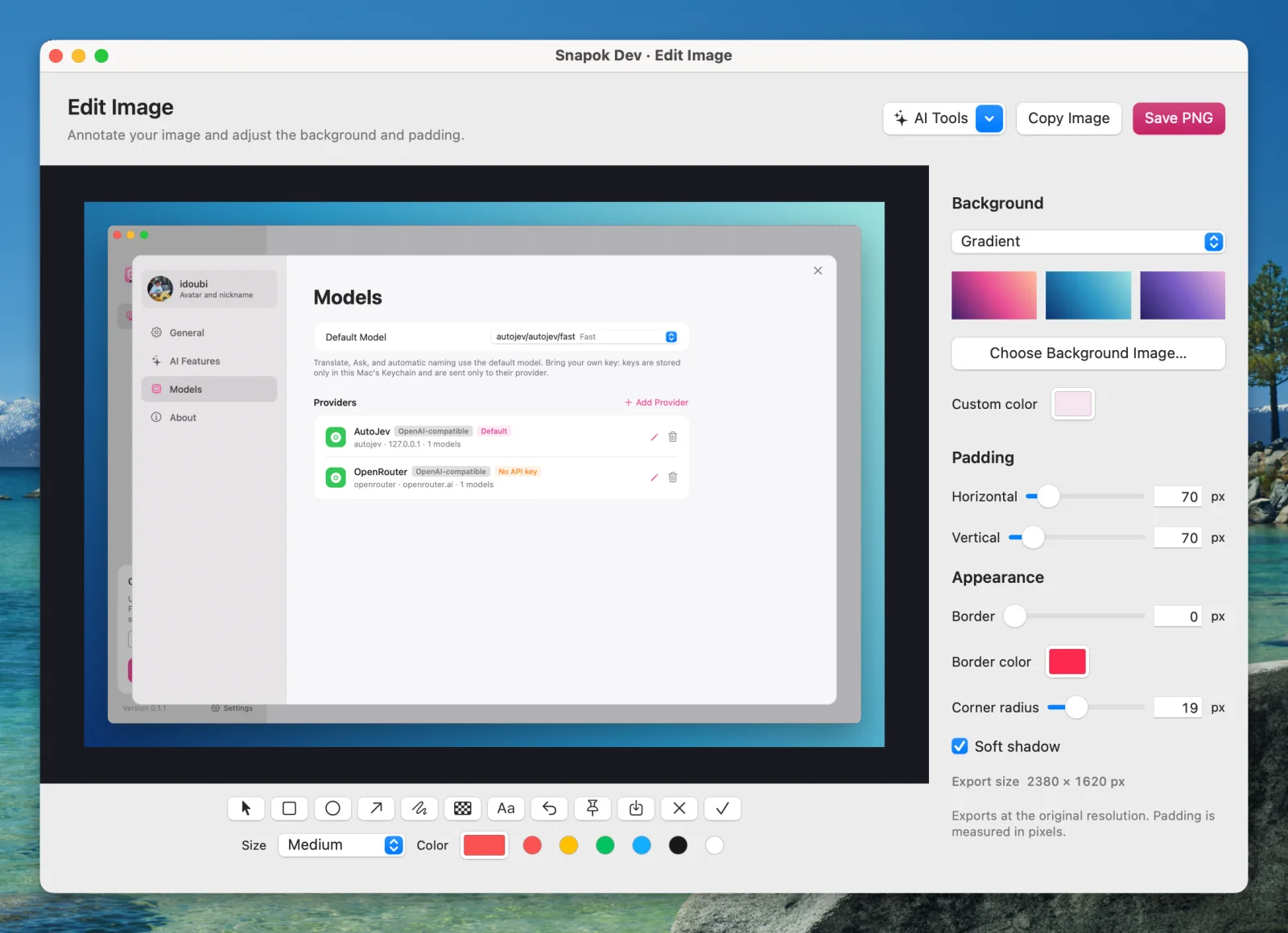
The Snapok image editor: editable annotations, backgrounds, and a live preview.
Point at anything. Snapok knows what it is.
Hover and the selection snaps to windows, panels, buttons, the Dock, the menu bar, or a single status item.
Snaps to real UI
With Accessibility enabled, Snapok reads the interface under your cursor and outlines individual controls. No pixel-hunting at the edges.
Scroll to grow
Scroll up to step out to the parent region, down to step back in.
Hold ⌥ for the whole window
Or the whole system container, like the full menu bar.
Pixel-accurate
The capture magnifier shows cursor coordinates and the RGB value under it. Nudge the selection with arrow keys, Shift for 10-point steps.
Mark it up. Then make it presentable.
Annotate right in the capture overlay, or press ⌘B to open the image editor for backgrounds, padding, borders, rounded corners, and shadow with a live preview.
- Rectangle
- Ellipse
- Arrow
- Pen
- Text
- Mosaic
- Annotations stay editable after capture. Move, restyle, delete, or undo them later.
- Backgrounds from your desktop wallpaper, a gradient, a solid color, or any image. Tune padding up to 600 px per axis, a border up to 20 px in any color, corners up to 80 px.
- Copy, save PNG, or pin above other windows without leaving the editor. Always at the original pixel resolution.
Every capture lands in your library.
With auto-save on, every screenshot you copy, save, pin, or edit is kept with its annotations. Cancelled captures are discarded.
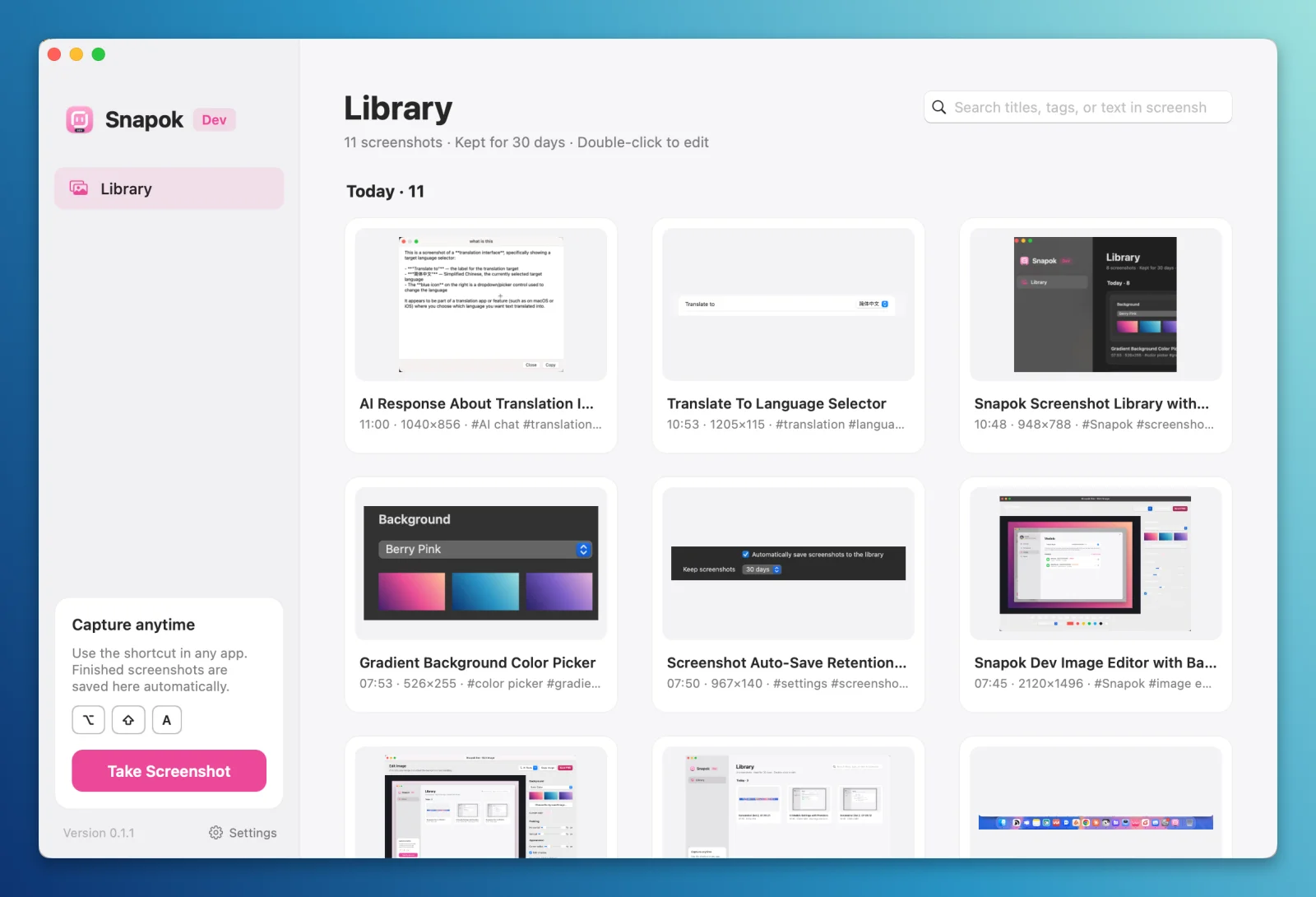
Search the text inside images
Text is recognized on-device after each capture, so a search for an error message finds the screenshot that shows it.
Open it, keep editing
Double-click any screenshot to reopen it in the editor. Changes are written back when you close it. Right-click to copy, pin, copy its text, rename, or reveal it in Finder.
Tidy by default
Grouped by day and cleaned up after 30 days. Choose 7, 90, or keep forever.
Stored locally in ~/Library/Application Support/Snapok/History
AI tools that stay out of the way.
Text recognition and redaction run on your Mac. Translate, Ask, and automatic naming use the model you choose, with your own API key: Anthropic or any OpenAI-compatible provider.
- Anthropic
- OpenAI
- OpenRouter
- DeepSeek
- MiniMax
- Z.AI
- or any OpenAI-compatible endpoint
| Feature | Runs | API key |
|---|---|---|
| Recognize text, search by text | On-device | Not needed |
| Mask phone numbers, emails, ID numbers, and keys | On-device | Not needed |
| Translate an image with on-device OCR + your text model | Your model | Your own |
| Ask about a screenshot with your vision model | Your model | Your own |
| Automatic titles and tags (off by default) | Your model | Your own |
Translate the text. Keep the image.
Choose a target language. Snapok recognizes text locally and sends text blocks to your default model. A text-only model works; visual context is optional and requires a model that supports images.
Edit before you share.
The translation opens in a separate editor. Adjust text, font size, colors, and text boxes; compare with the original, undo changes, then copy, save PNG, or save to your library. Your source screenshot is preserved. Check complex backgrounds and overflowing text before exporting.
When image input is used, the screenshot includes your current annotations, so masked areas stay masked. Automatic naming sends new screenshots to your provider and is off by default.
API keys are stored only in the macOS Keychain and sent only to their provider.
Make it yours.
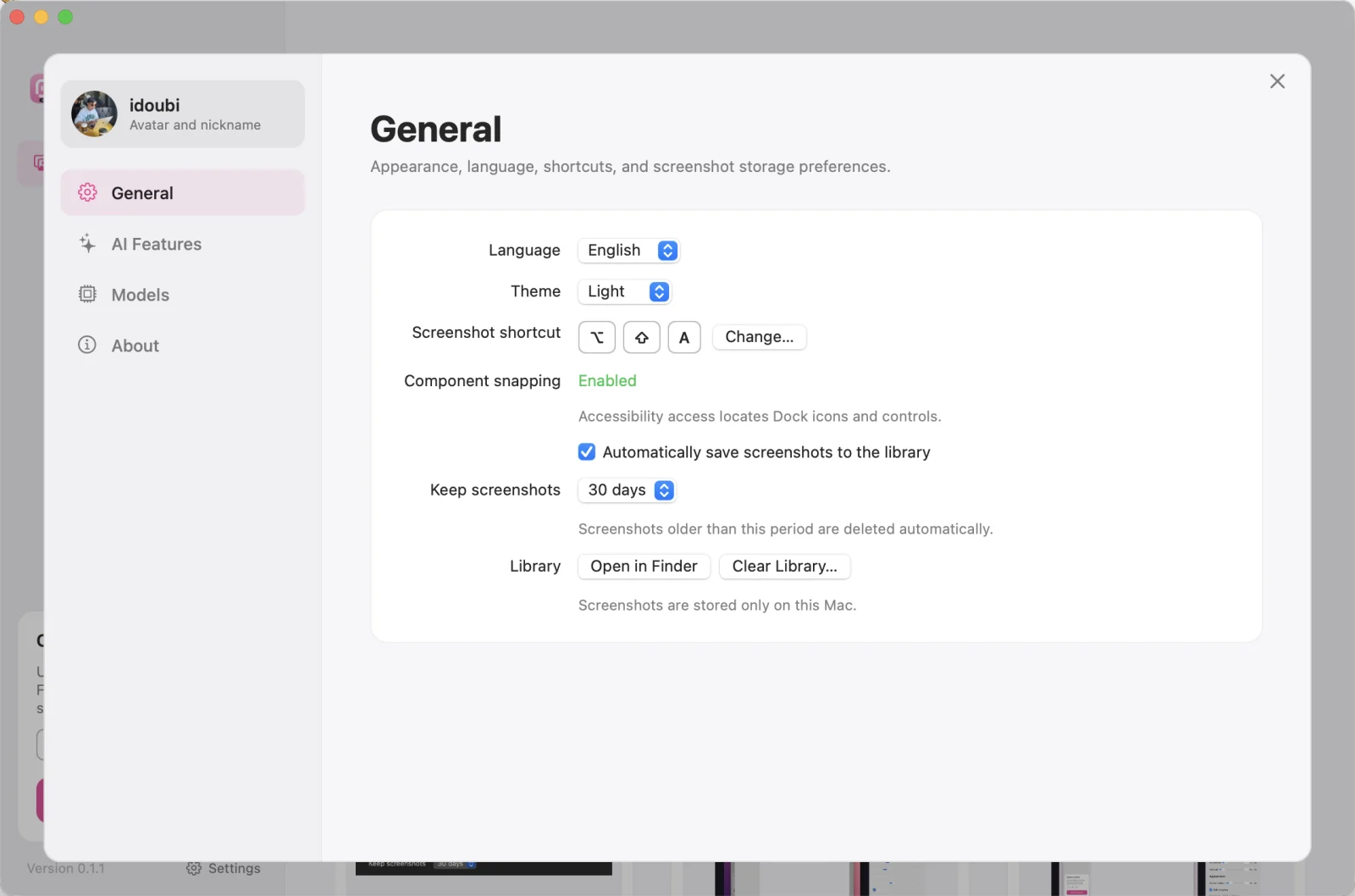
Settings open as a panel over your library. General controls language, appearance, shortcuts, and storage; Models and AI Features configure your providers and translation preferences.
Light, Dark, or System
Themes apply immediately. System follows your macOS appearance.
English or 简体中文
Switch languages without restarting. Menus, the library, and new captures follow right away.
Your own capture shortcut
Keep ⌃⌘A or record any combination you like.
Stored only on this Mac
Turn auto-save on or off, keep screenshots for 7, 30, or 90 days or forever, and set a local avatar and nickname.
Keyboard first.
Everything in a capture has a key. Here are the ones you'll use daily.
- Start a capture
- ⌃⌘A
- Select the full window
- ⌥ + hover
- Expand or shrink the selection
- Scroll
- Nudge the selection
- ←↑→↓
- Open the image editor
- ⌘B
- Copy the capture
- ↩or⌘C
- Save as PNG
- ⌘S
- Undo an annotation edit
- ⌘Z
- Reselect or cancel
- Right-clickoresc

Get Snapok for your Mac.
Free and open source. macOS 14 or later, Apple Silicon and Intel.
Latest stable release · v0.1.1 · Universal for Apple Silicon & Intel
Open the DMG and drag Snapok.app to Applications. Coming from 0.1.0? Install this release once to enable future automatic updates.
Signed and notarized by Apple, and updates itself when a new version is out. Or build it yourself:
git clone https://github.com/thinkany-ai/snapok.git
cd snapok && git checkout dev
./scripts/build-app.sh release