
Turn a raw capture into something worth posting.
Press ⌘E after selecting a capture and the image editor opens with a live preview. Pick a background, set padding and corners, add a shadow, and export at full resolution. No watermark, no upsell.
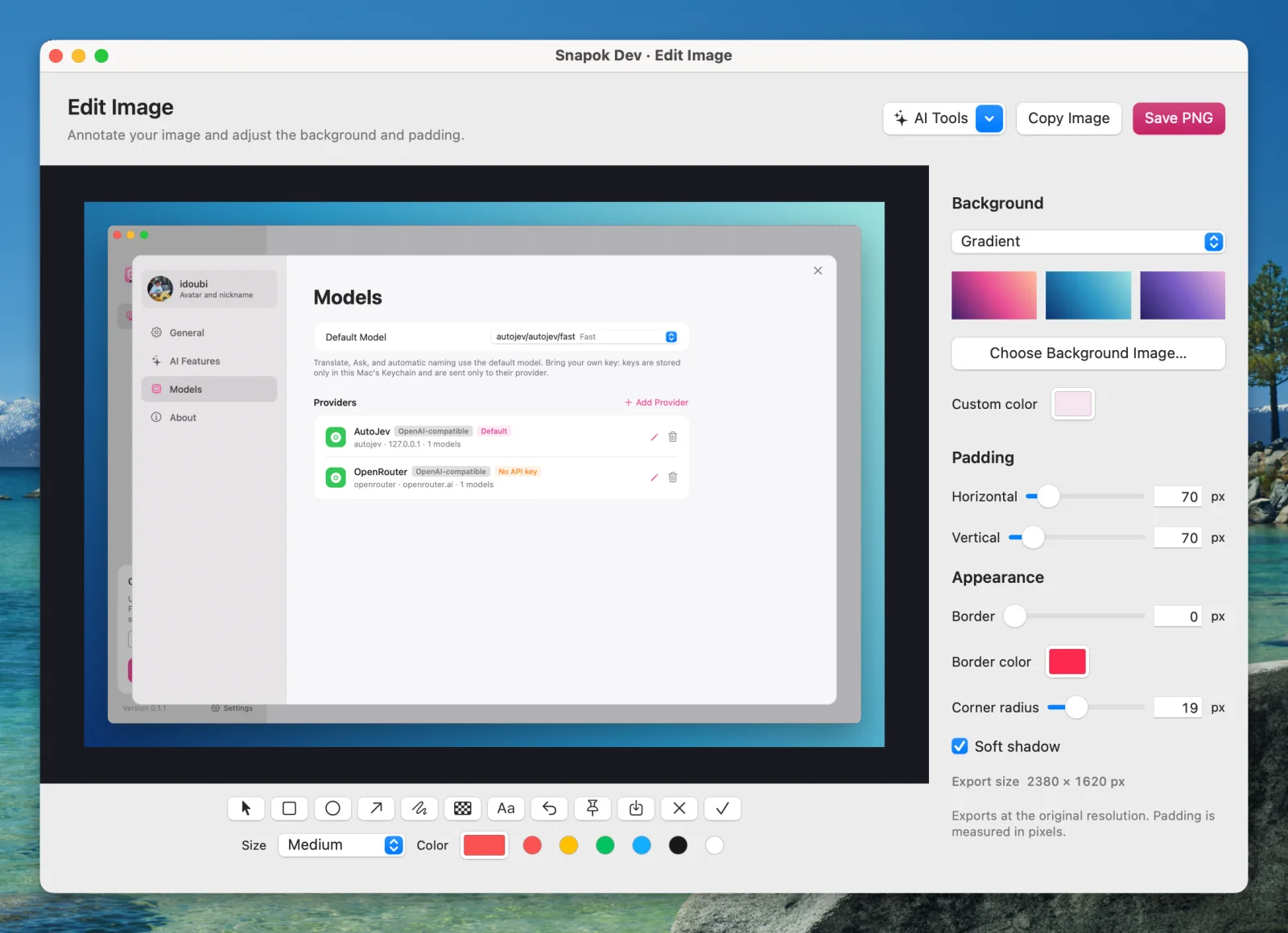
Any background
Your desktop wallpaper, a gradient, a solid color, or any image you choose.
Fine-grained frame controls
Horizontal and vertical padding up to 600 px each, a border up to 20 px in any color, corners up to 80 px, and a soft shadow.
Export without leaving
Copy Image, Save PNG, or pin it above other windows, all while the editor stays open. Always at the original pixel resolution.
Annotations included
The same editor holds your arrows and text, so framing and marking up happen in one place.
How to add a background to a screenshot
- 1Capture a region with ⌃⌘A.
- 2Press ⌘E to open the image editor.
- 3Choose a background and adjust padding, border, radius, and shadow.
- 4Copy Image or Save PNG.
How Snapok compares
Who uses it
Frequently asked questions
Do exported images have a watermark?
No. Snapok is free and open source; nothing is locked behind a license.
Can I try this without installing anything?
Yes. Our free online screenshot beautifier runs in your browser and never uploads your image.
Related features
Try Snapok free on your Mac.
Free and open source. macOS 14 or later, Apple Silicon and Intel.