
Find that screenshot from last Tuesday.
With auto-save on, every screenshot you copy, save, pin, or edit lands in a local library, grouped by day. Cancelled captures are discarded, so it stays clean.
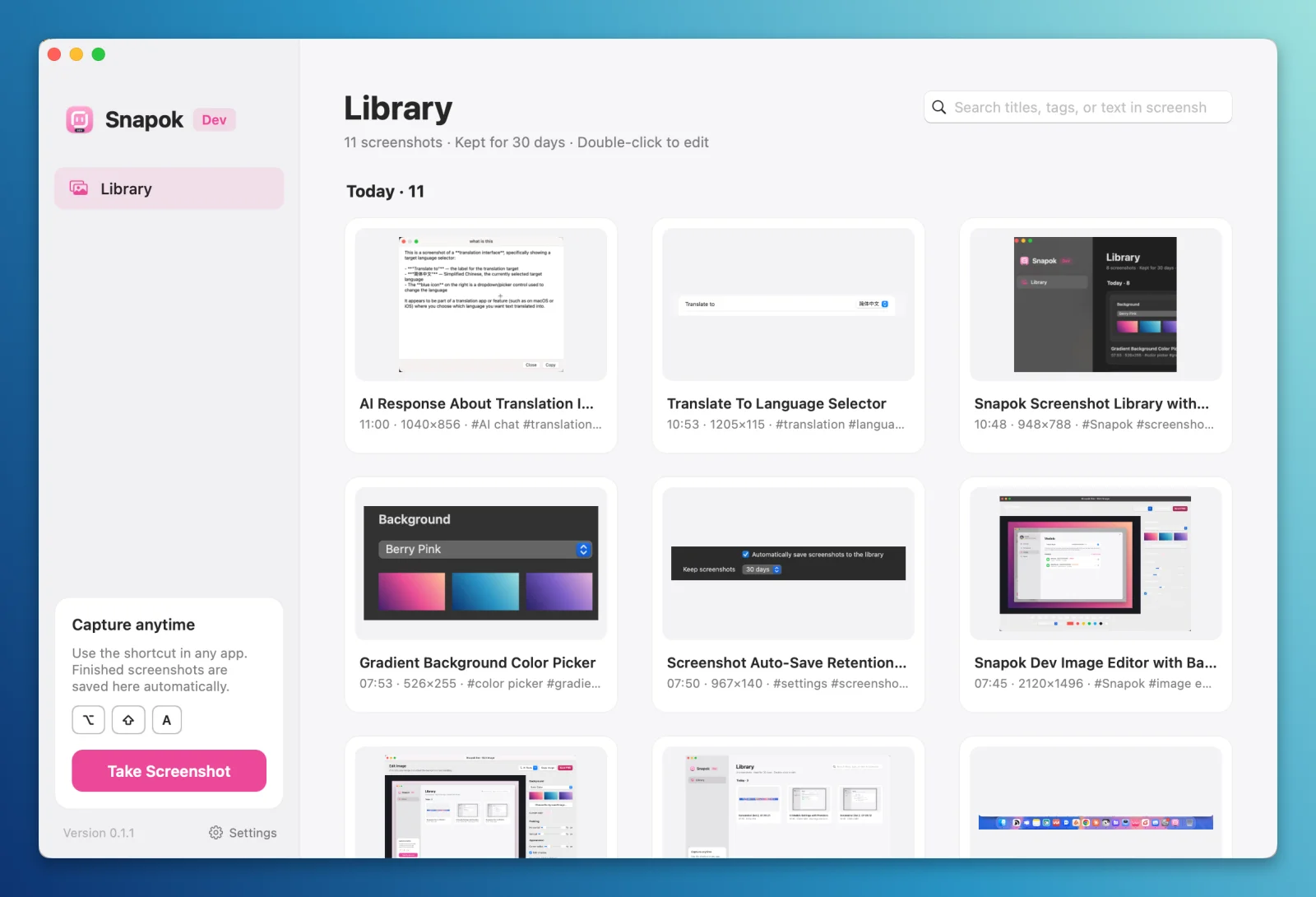
Search by what’s in the image
Titles, tags, and on-device recognized text are all searchable.
Reopen and keep editing
Double-click (or Return) to open a screenshot in the editor with its annotations intact.
Tidy by default
Old screenshots are removed after 30 days. Choose 7, 90, or keep forever, and pick your own storage folder.
Optional auto-naming
Let your model title and tag new screenshots. Off by default, because it sends each screenshot to your provider.
How to find an old screenshot on Mac
- 1Click the Snapok Dock icon or choose Show Main Window from the menu bar.
- 2Type any word you remember from the screenshot into search.
- 3Double-click the result to edit it, or right-click to copy, pin, or reveal in Finder.
How Snapok compares
Who uses it
Frequently asked questions
Where are screenshots stored?
Locally, in ~/Library/Application Support/Snapok/History by default, one folder per screenshot. You can change the location in Settings → General.
Is there a cloud sync?
No. The library lives only on your Mac.
Related features
Try Snapok free on your Mac.
Free and open source. macOS 14 or later, Apple Silicon and Intel.